
Create Engaging Video Commentary with ClipCam: A Complete Guide
Unlock the power of video commentary with ClipCam. Enhance your content effortlessly—start creating engaging videos today!
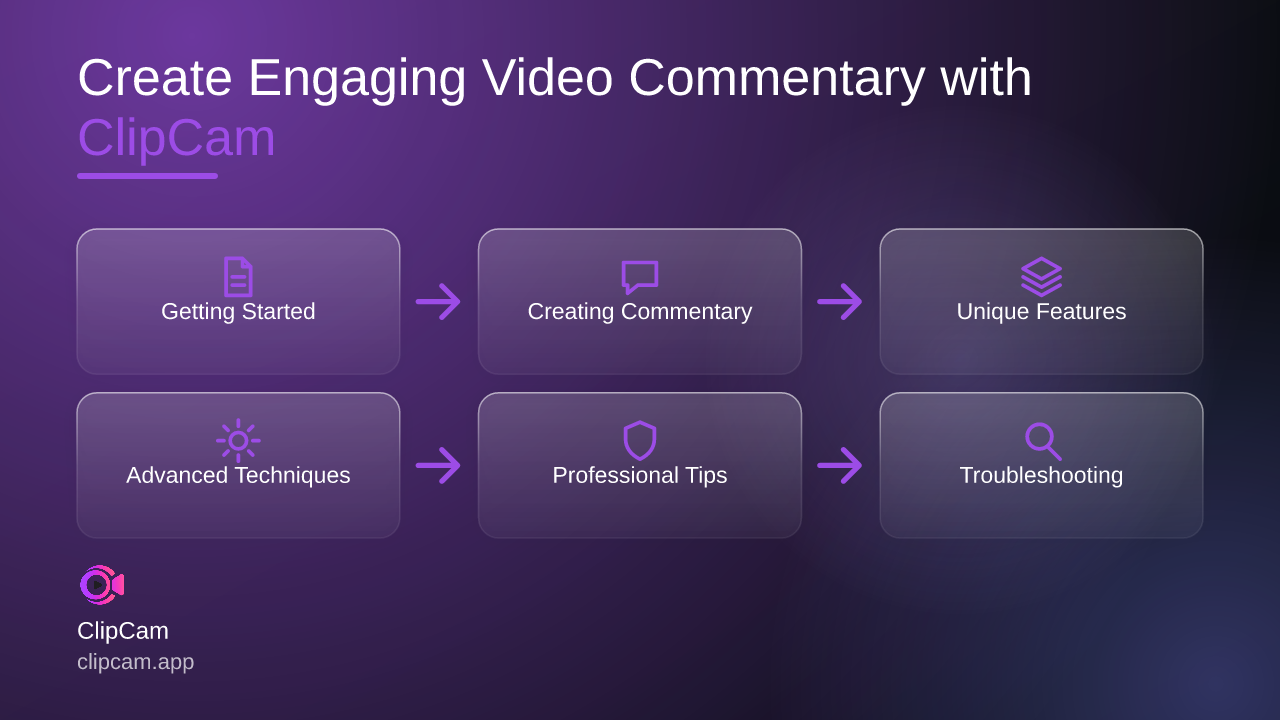
Create Engaging Video Commentary with ClipCam: A Complete Guide
Recording your reactions to your favorite videos has never been easier or more engaging than with ClipCam. Whether you're a seasoned content creator or just starting, this app enables you to produce side-by-side reaction videos that captivate your audience while making the sharing process seamless.
Getting Started with ClipCam for Video Commentary
What is ClipCam?
ClipCam is an innovative mobile application designed specifically for creating reaction videos. Its standout feature allows users to record their commentary side-by-side with any video clip, giving viewers an authentic and immersive experience. Perfect for platforms like YouTube, TikTok, and Instagram, ClipCam takes the hassle out of video creation, enabling users to focus on what really matters—engaging their audiences.
How to Download and Set Up ClipCam
Getting started is simple:
Download the App: ClipCam is available for both iOS and Android. Head to the Apple App Store or Google Play Store and search for "ClipCam." Hit download to install the app on your device.
Create an Account: Open the app and sign up using your email or social media accounts. This allows you to easily share your videos later.
Finalize Settings: Once signed in, you’ll be prompted to adjust your camera settings based on your preferences. Make sure you grant necessary permissions for optimal functionality.
Now that you have ClipCam installed, you're ready to start creating engaging video commentary!
Creating Engaging Video Commentary with ClipCam
Best Practices for Recording
To keep your audience hooked, clarity and enthusiasm are essential. Here are a few tips to enhance your recording:
Stay Engaging: Use a lively tone and express your genuine reactions to the video you are commenting on. Don’t shy away from showing your personality: it’s what will resonate with viewers.
Minimize Distractions: Choose a quiet environment to record your commentary to avoid background noise, ensuring your voice is clear and audible.
By incorporating these practices, not only will your commentary be more compelling, but it will also lead to increased audience retention.
Features That Enhance Your Commentary
ClipCam is packed with features designed to streamline your creative process:
Automatic Side-by-Side Rendering: As you record your reactions, ClipCam automatically places your commentary next to the video clip. This ensures a polished final product without any tedious editing.
One-Tap Sharing: Immediately after recording, share your creations to multiple platforms at the click of a button. With ClipCam, you can easily distribute your content to YouTube, TikTok, Instagram, and X, broadening your reach and engagement.
Leveraging ClipCam’s Unique Features
Side-by-Side Reactions
The side-by-side reaction feature is what sets ClipCam apart. This functionality allows you to naturally engage with the content while providing commentary. Viewers benefit from seeing both the relevant video and your reactions, enhancing the viewing experience significantly. This approach not only elevates your authority as a commentator but also invites interaction from your audience.
One-Tap Sharing to Multiple Platforms
In the fast-paced world of content creation, speed is essential. ClipCam’s one-tap sharing feature allows you to post videos directly to popular platforms. This means less time managing uploads and more time focusing on creating new content. Plus, the cross-platform compatibility ensures that your audience can enjoy your videos wherever they are most active.
Advanced Techniques for Effective Commentary
Creative Use Cases Beyond Reactions
ClipCam isn’t just for traditional reaction videos. Here are innovative ways to use it:
Tutorials: Record your screen alongside your commentary as you navigate through a tutorial, providing real-time guidance to your viewers.
Reviews: Examine products or services while presenting your thoughts on-screen, giving viewers a clearer understanding of your perspective.
Incorporating Feedback and Viewer Engagement
Engagement doesn’t end once the video is published. Encourage your followers to leave comments and feedback, which can help shape future videos. Studies show that responding to audience comments fosters community and increases viewer loyalty.
Tips for Professional-Looking Video Commentary
Achieving High-Quality Video
To captivate your audience visually, pay attention to the following:
Lighting: Natural light works wonders for video quality. If shooting indoors, position yourself toward a light source or invest in a ring light.
Background: Choose a clean and uncluttered backdrop, so the focus remains on you.
Editing and Enhancements in ClipCam
ClipCam also offers editing features to refine your videos. Add text overlays, filters, or transitions to enhance the visual quality and keep your audience engaged. A well-polished video can make a significant difference in how your content is perceived.
User Testimonials: Success Stories Using ClipCam
Professional Creators’ Experiences
Many successful content creators have revolutionized their video commentary with ClipCam. “I've never felt more connected to my audience,” says a well-known gaming YouTuber. “ClipCam makes it easy to express my thoughts live as I play.”
Case Studies of Engaging Videos
One TikTok creator reported a 50% increase in engagement and followers after incorporating ClipCam into their content strategy. They used the app for review videos paired with their commentary, leading to meaningful conversations in the comments section and an overall boost in audience interaction.
Troubleshooting and FAQs about ClipCam
Common Issues and Solutions
Some users may encounter issues such as:
Video Upload Delays: Ensure your app is updated to the latest version, and check your internet connection to resolve uploading delays.
Audio Issues: If you're not getting clear sound, verify your microphone settings in the app.
FAQs on Video Commentary Creation
Q: Can I edit my videos once recorded?
A: Yes! ClipCam provides editing tools that allow you to enhance your content before sharing.
Q: What devices are compatible with ClipCam?
A: ClipCam is available on both iOS and Android devices, making it accessible for most users.
Conclusion
With ClipCam, creating engaging video commentary is not only possible but also hassle-free. Its user-friendly features and professional quality empower creators to produce captivating content effortlessly. Get started with ClipCam today and create your own engaging video commentary!